

VBA For Loop in Excel — 8 Real-World Examples
Tested on: Excel 365 v2509 · Excel 2021 · Excel 2019 — last verified May 10, 2026. Companion workbook: download
vba-for-loop-em-demo.xlsm+Examples.bas. Every code block in this article runs exactly as shown in the screenshots — no surprises.
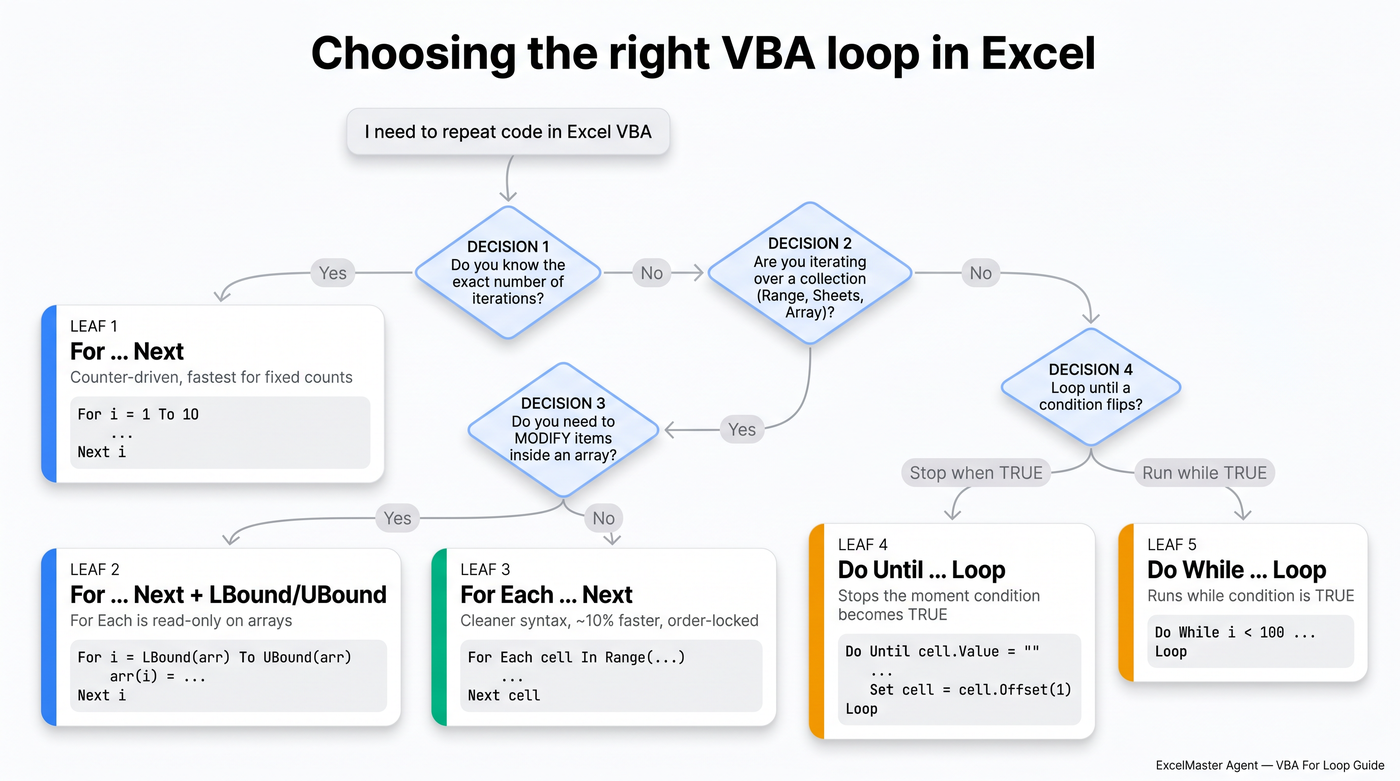
TL;DR — Most of your loops should be For i = 1 To N (counter-driven) or For Each item In collection (collection-driven). Pick For ... Next when you know the count. Pick For Each when you have a Range, an Array, or a Sheets collection. Use Step -1 when deleting rows. Use Exit For to bail early.
Dim i As Long
For i = 1 To 10
    Cells(i, 1).Value = i * 10
Next i
That's the entire mental model. The 8 examples below cover every case you'll meet in real spreadsheet automation work.
Why this guide exists
Microsoft's official For...Next reference is correct but skeletal. Most blog tutorials paste the same 3 generic examples and stop there. This guide walks through 8 scenarios that mirror what you actually do at work — fill cells, skip every other row, safely delete rows, find a value, build a multiplication table, sum a column, iterate an array, and copy rows that match a filter. Each example ships with the companion workbook, so you can run it, break it, fix it.
Example 1 — Fill 10 cells with sequential numbers
The simplest possible For loop. Counter goes 1 → 10, each iteration writes one cell.
Sub Example01_Basic()
    Dim i As Long
    For i = 1 To 10
        Sheets("01_Basic").Cells(i, 1).Value = i * 10
    Next i
End Sub
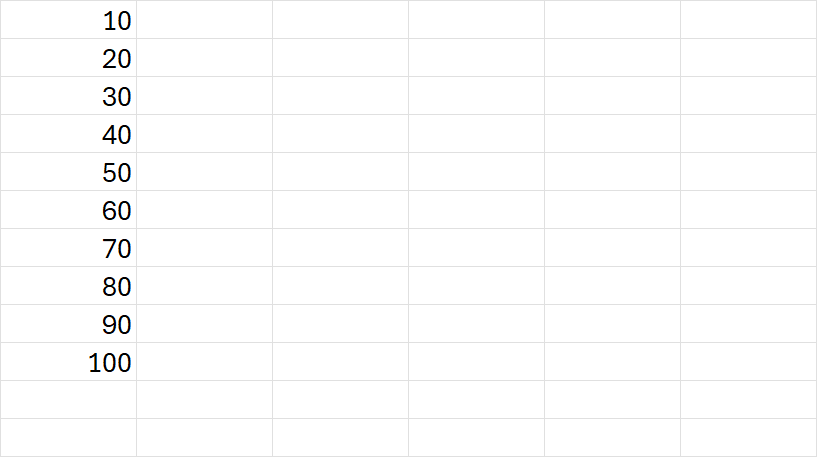
When to use: anytime you know the exact iteration count up-front. Counter loops are the fastest VBA loop construct and the easiest to read.
Example 2 — Use Step to fill every other row
Step controls the increment. Step 2 jumps in twos. Combined with the counter, it's the cleanest way to skip rows.
Sub Example02_Step()
    Dim i As Long
    For i = 1 To 20 Step 2
        Sheets("02_Step").Cells(i, 1).Value = "Row " & i
    Next i
End Sub
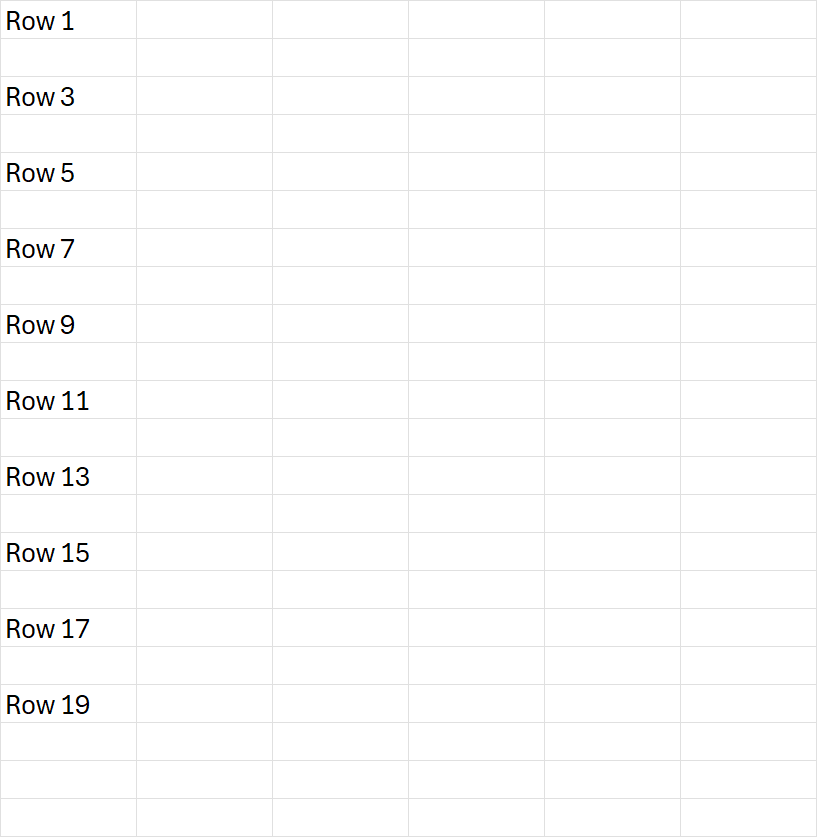
Common variations:
For i = 0 To 100 Step 5      ' fives
For i = 1 To 100 Step 10     ' tens
For x = 0.5 To 5 Step 0.5    ' fractional with Double
If you omit Step, VBA defaults to Step 1. Negative steps work too — see Example 3.
Example 3 — Reverse loop to delete rows safely
This is the single most important pattern in this article. Forward iteration breaks when you delete rows. After Rows(3).Delete, what was row 4 becomes row 3 — but the loop has already moved on to index 4, silently skipping it. Reverse iteration with Step -1 avoids the trap because rows above the deletion point keep their indices.
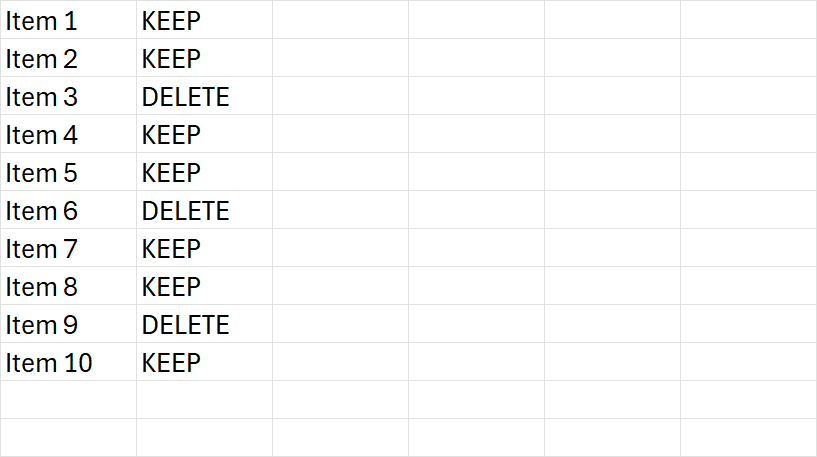
Before: rows 3, 6, and 9 are flagged DELETE.
Sub Example03_Reverse()
    Dim i As Long
    Dim ws As Worksheet
    Set ws = Sheets("03_Reverse")
    For i = 10 To 1 Step -1
        If ws.Cells(i, 2).Value = "DELETE" Then
            ws.Rows(i).Delete
        End If
    Next i
End Sub
After: all three flagged rows are gone, no skipped rows.
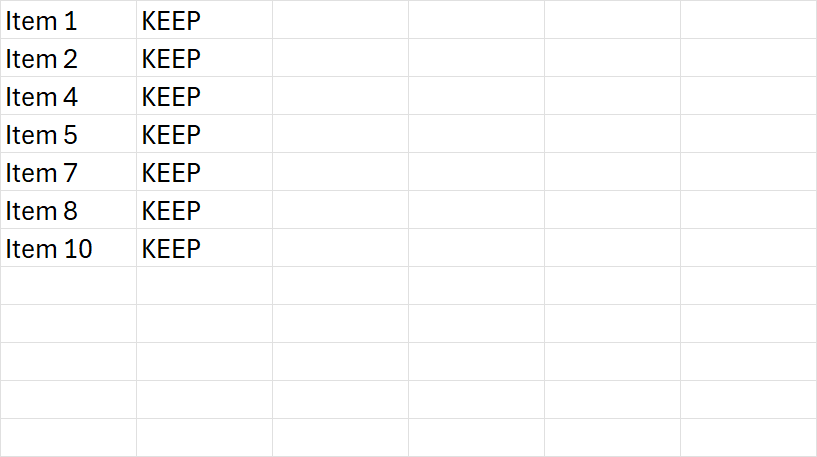
Mental model: any time you mutate a collection's length while iterating it, walk it backwards.
Heads up:
Example03_Reversemutates sheet03_Reverse. Running it twice does nothing — the DELETE flags are already gone. The companion module ships with aReset03_ReverseSub that re-creates the original 10 rows; run that first to re-experiment.
Example 4 — Exit For to stop on first match
When you don't need to scan everything — just the first hit — Exit For saves you a thousand iterations.
Sub Example04_ExitFor()
    Dim i As Long
    For i = 1 To 1000
        If Sheets("04_ExitFor").Cells(i, 1).Value = "STOP" Then
            MsgBox "Found STOP at row " & i
            Exit For
        End If
    Next i
End Sub
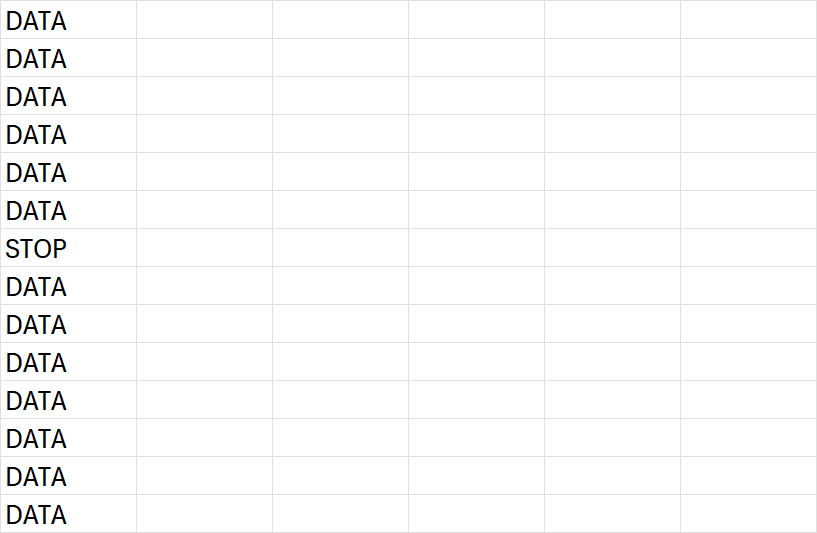
The data has STOP at row 7. Running this Sub pops a message box "Found STOP at row 7" and exits before checking rows 8–1000. With 1,000,000 rows in modern Excel, the early-exit habit matters.
Exit For works the same in For Each loops.
Example 5 — Nested loop fills a 6×4 grid
Need 2D output? Nest one loop inside another. The outer loop is rows, the inner loop is columns.
Sub Example05_Nested()
    Dim r As Long, c As Long
    For r = 1 To 6
        For c = 1 To 4
            Sheets("05_Nested").Cells(r, c).Value = r * c
        Next c
    Next r
End Sub
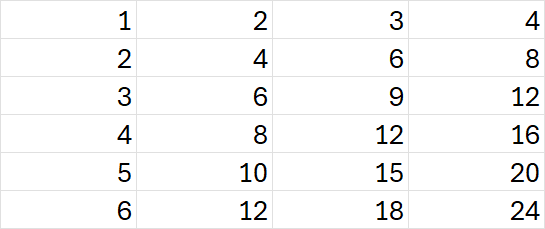
Order matters for performance. Iterating row-by-row (outer = row, inner = column) is faster than column-by-column on large data because Excel's storage is row-major. For tiny grids it's invisible; on 100k+ cells, expect a 2–3× speedup just from loop order.
Example 6 — For Each over a Range
When you have a Range, For Each is shorter and slightly faster than counter loops because VBA doesn't have to recompute .Cells(i, j) each iteration — the Range collection hands you an already-resolved cell.
Sub Example06_ForEachRange()
    Dim cell As Range
    Dim total As Double
    For Each cell In Sheets("06_ForEachRange").Range("B2:B11")
        total = total + cell.Value
    Next cell
    Sheets("06_ForEachRange").Range("D2").Value = total
End Sub
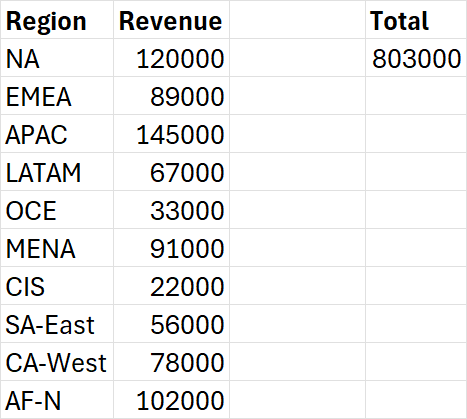
The total of 10 regional revenues is written to D2: 803,000.
Caveat: for a 10-row range, the speed difference is nothing. For 100,000 cells, prefer For Each over For i = 1 To range.Rows.Count — it's measurably faster and the code is cleaner.
Example 7 — For Each over an Array
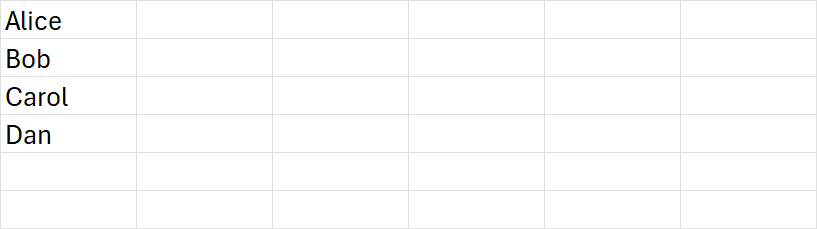
For Each also iterates VBA Arrays in declaration order. The variable type must be Variant because the array element type isn't known to the compiler at iteration time.
Sub Example07_ForEachArray()
    Dim names As Variant
    names = Array("Alice", "Bob", "Carol", "Dan")
    Dim n As Variant
    Dim i As Long
    i = 1
    For Each n In names
        Sheets("07_Array").Cells(i, 1).Value = n
        i = i + 1
    Next n
End Sub
Important gotcha: For Each is read-only when iterating an Array. Assigning to the loop variable changes the variable, not the array element. If you need to mutate the array, switch to a counter loop with LBound/UBound:
Dim i As Long
For i = LBound(arr) To UBound(arr)
    arr(i) = UCase(arr(i))    ' This actually changes the array.
Next i
This is also the case shown in the right-most blue branch of the decision tree at the top of the article.
Example 8 — Real-world: copy rows where Amount > 200,000
This is what 80% of business VBA actually does — read source rows, filter on a condition, write the matching rows somewhere else. Source on columns A–D (Date, Region, Product, Amount); output to columns F–I.
Sub Example08_RealWorld()
    Dim ws As Worksheet
    Set ws = Sheets("08_RealWorld")
    Dim lastRow As Long
    lastRow = ws.Cells(ws.Rows.Count, 1).End(xlUp).Row
    ws.Range("F2:I100").ClearContents
    Dim outRow As Long
    outRow = 2
    Dim i As Long
    For i = 2 To lastRow
        If ws.Cells(i, 4).Value > 200000 Then
            ws.Cells(outRow, 6).Value = ws.Cells(i, 1).Value
            ws.Cells(outRow, 7).Value = ws.Cells(i, 2).Value
            ws.Cells(outRow, 8).Value = ws.Cells(i, 3).Value
            ws.Cells(outRow, 9).Value = ws.Cells(i, 4).Value
            outRow = outRow + 1
        End If
    Next i
End Sub
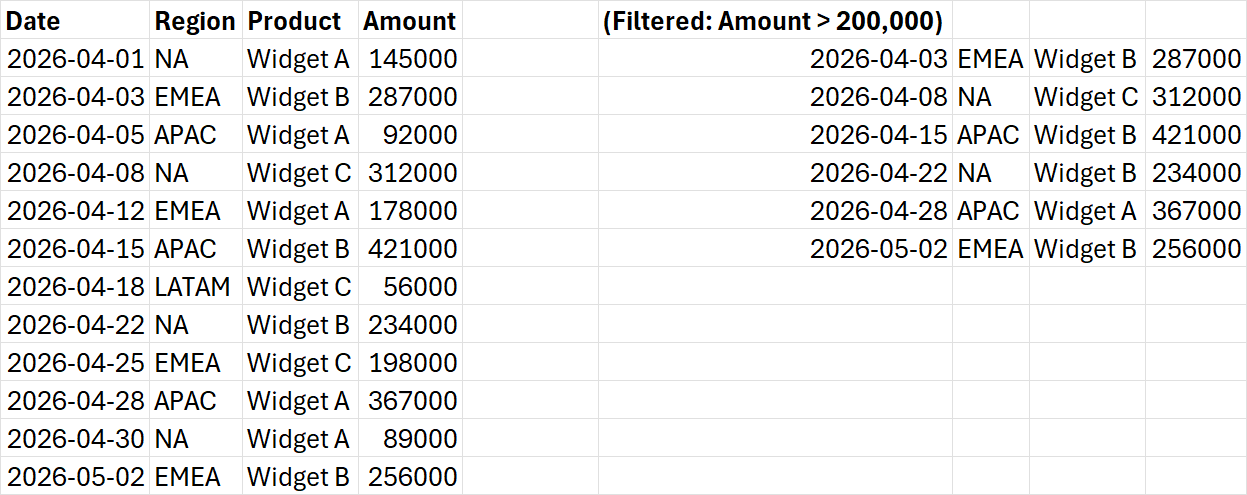
Two things worth pausing on:
lastRowis computed once, before the loop. Computing it inside the loop body would re-walk column A on every iteration. On 50k rows the slowdown is brutal.outRowis a separate counter. Don't try to be clever and write to rowiin the destination — you'll get gaps where the filter rejected rows.
This skeleton — counter loop + If filter + separate output index — is the workhorse pattern of VBA reporting macros.
4 Common Pitfalls
| # | Pitfall | What goes wrong | Fix |
|---|---|---|---|
| 1 | Forward delete | Rows(i).Delete shifts rows up; the loop skips the row that took its place |
Iterate backwards with Step -1 (Example 3) |
| 2 | Step direction mismatch |
For i = 20 To 10 Step 1 runs zero iterations silently — start > end with positive step |
Either flip to Step -1 or swap start/end |
| 3 | For Each mutating an Array |
Assigning s = "Z" inside For Each s In arr changes s, not arr(i) |
Switch to For i = LBound(arr) To UBound(arr) (Example 7) |
| 4 | lastRow recomputed every iteration |
For i = 2 To Cells(Rows.Count, 1).End(xlUp).Row walks column A every loop |
Cache it: lastRow = … once, then use For i = 2 To lastRow |
VBA For Loop vs modern alternatives
VBA For loops are battle-tested. They're also the long way around for a lot of common spreadsheet tasks. Three alternatives are worth knowing:
| Tool | Best at | When VBA still wins |
|---|---|---|
| Power Query | Repeating a transform every time the source updates | One-off scripts; row-by-row deletion logic |
| Office Scripts | The same loop, but in TypeScript, runs in Excel for the Web and Microsoft 365 desktop | Self-contained .xlsm distribution; Excel 2019/2021 (no Office Scripts); on-prem environments without OneDrive |
| ExcelMaster Agent | Describing the goal in plain English; the agent writes and runs the Python that does it | Strict on-prem environments without internet |
Take Example 8 above. In ExcelMaster Agent it's one sentence:
"Copy rows from sheet 08_RealWorld where column D is greater than 200,000 to columns F:I."
You don't write Cells(i, 4).Value > 200000, you don't manage outRow, you don't worry about whether to use For or For Each. The agent picks the right pattern, runs it, and shows you the diff. Try ExcelMaster Agent free →
When 200 lines of VBA become painful to maintain, that's the signal to graduate.
Frequently asked questions
Q: How do I break out of a nested loop?
Exit For only exits the innermost loop. To exit all of them, use a flag:
Dim done As Boolean
For r = 1 To 10
    For c = 1 To 10
        If Cells(r, c).Value = "found" Then done = True : Exit For
    Next c
    If done Then Exit For
Next r
Q: What's the difference between For Each and For ... Next?
For Each iterates a collection in its native order, hands you each item, and is slightly faster on large Ranges/Collections. For ... Next is counter-based — you control the index, the direction (Step -1), and you can skip with Step 2. Use For Each when you have a collection; use For ... Next when you need fine-grained index control.
Q: Does For Each work on every collection?
It works on any object that exposes a _NewEnum interface — Range, Workbooks, Worksheets, Sheets, Cells of a Range, the keys of a Scripting.Dictionary, and Arrays. It does not work on plain VBA Collection items returned by user code unless the collection type implements the enumerator.
Q: How do I increment by 0.5 or another non-integer?
Declare the counter as Double and use a fractional Step: For x = 0.5 To 5 Step 0.5. Watch out for floating-point comparison errors on the boundary — VBA may stop one iteration early.
Q: How fast is a VBA For loop on 100,000 rows?
Reading 100k cell values one at a time typically takes 5–15 seconds depending on the machine and the Excel version. The trick at scale is to read once into an Array (Dim arr: arr = Range("A1:A100000").Value), loop through the array (sub-second), then write the result back as a Range — that's typically 50–100× faster than per-cell access.
Q: Can I use Continue like in C# or Python?
VBA has no Continue statement. The standard idiom is If condition Then GoTo NextIter with a label NextIter: immediately before Next. Or, more cleanly, wrap the body in If Not condition Then ... End If.
Download the companion workbook
Every code example above runs unchanged on this two-file template. Click to download:
To use the workbook:
- Download
vba-for-loop-em-demo.xlsm. - Open in Excel. Click Enable Editing if Protected View shows; click Enable Content if the macro warning shows. (If you hit the red Security Risk bar, see Microsoft's official guide on macros blocked from the internet.)
- Press Alt+F11 to open the VBA editor — the
Examplesmodule is already loaded. - Click any
Sub(e.g.Example05_Nested) and press F5. The matching sheet fills in.
Or run RunAllExamples to fire off the 6 non-destructive examples in sequence.
About the .bas file: the plain-text vba-for-loop-Examples.bas mirrors the same code that ships inside the .xlsm — useful for reading the source without opening Excel, or for importing into a different workbook (File → Import File…).
Related VBA tutorials
- How to enable macros in Excel (coming soon — meanwhile see Microsoft's macros blocked from the internet doc) — required before any of these examples will run on a downloaded file
- VBA While Loop — when you don't know the iteration count up front (coming soon)
- VBA Array — load a Range into memory and process it 100× faster (coming soon)
- VBA Dictionary —
Scripting.Dictionaryis what you reach for when nested-If chains get out of hand (coming soon) - VBA MsgBox — pop messages mid-loop, like Example 4 above (coming soon)
This article was written and tested by the ExcelMaster Engineering team. Spotted a bug or have a real-world example you want us to add? Email [email protected].