
WPS Office
Enable ExcelMaster in WPS Spreadsheets
WPS turns third-party add-ins off by default, so ExcelMaster does not appear until you switch it on. It takes about a minute and you only do it once.
- 1
Open a spreadsheet in WPS
Start WPS Spreadsheets and open any workbook. The Tools menu only shows up with a spreadsheet open.
- 2
Open Tools, then COM Add-ins
In the top menu click Tools, then COM Add-ins. A dialog lists the add-ins WPS is loading.

- 3
Click the blue management link at the bottom
The dialog says this computer has disabled third-party add-ins that may slow startup. Click the link next to it to manage them.
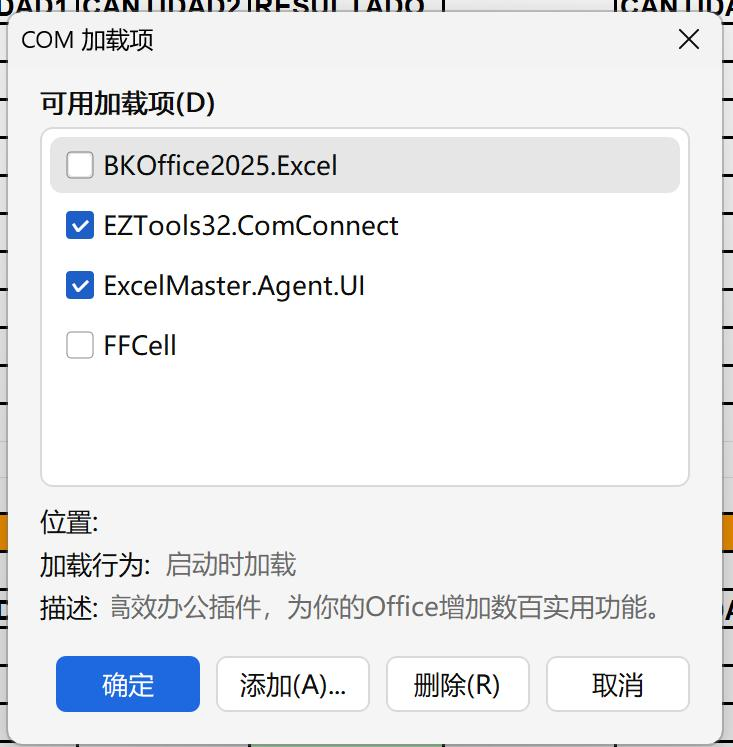
- 4
Enable ExcelMaster.Agent.UI
Find ExcelMaster.Agent.UI in the list and click Enable. Confirm if WPS asks.
- 5
Restart WPS
Close every WPS window and open your workbook again. The ExcelMaster tab now appears in the ribbon.
If ExcelMaster disappears later
When WPS was closed unexpectedly while ExcelMaster was running, WPS may stop loading it on the next start. Repeat steps 2 to 5; the add-in is still installed.
Not in the list?
Close WPS, run the ExcelMaster Agent installer again, then repeat the steps above. The installer registers the add-in for WPS when WPS is installed on the computer.
Microsoft Excel needs none of this: the ExcelMaster tab appears automatically.